

The shadcn MCP server lets a coding agent find real components, read usage examples and get the command to add them to your project.
Start with an initialized shadcn project, connect the server in that project’s directory, then ask the agent to search, inspect and install the components before building your screen. The useful checkpoint is a working interface with real imports—not just a connected-server indicator.
Below is the setup, a copyable task and a small launch-checklist app built through that workflow. The example also exposes a detail worth catching early: the MCP usage example contained registry-internal import paths that needed changing for the local project.
Test scope: On October 26, 2026, Codex called the official shadcn MCP server over a real stdio connection using an isolated MCP SDK client. It then ran the returned CLI install command and built a React/Vite app. The Codex and other editor configurations below come from official documentation; this test did not change or validate a native editor’s MCP settings. The example uses local browser storage, with no login or backend.
What shadcn MCP does—and what still needs your agent
MCP is the connection between your coding agent and the component registry tools. shadcn/ui supplies the components; the agent chooses how to compose them and writes the application around them.
In this trial, the server’s add tool returned an install command. It didn’t create the interface on its own. Codex executed the command, inspected the installed files, wrote the app and checked the result in a browser. That distinction makes it easier to tell where a workflow has stopped.
| Tool | What to use it for |
|---|---|
get_project_registries | Check which registry context the running server sees. |
list_items_in_registries | Browse items in a registry. |
search_items_in_registries | Find candidates by name or description. |
view_items_in_registries | Inspect item details. Our response included item types, file counts and dependencies. |
get_item_examples_from_registries | Get usage examples with code. Check their imports against your project. |
get_add_command_for_items | Get the CLI command for the selected items. |
get_audit_checklist | Get a checklist of things to verify. It is not a completed automated audit. |
This is a component workflow, rather than a choice of app builder. If you’re still choosing the UI foundation, read shadcn/ui, Untitled UI Free and daisyUI compared. For the builder or coding-agent decision, use the vibe coding tools guide.
Set up the project before connecting the server
You need a compatible local coding agent, Node.js/npm and a working project. This example used React, TypeScript, Vite and Tailwind CSS v4, with Node.js 22.16.0 and npm 10.9.2. For a new project, follow the official Vite setup first; MCP doesn’t replace the framework, CSS or import-alias setup.
The controls used here are free shadcn components. Your coding agent’s plan and any later hosting or backend costs are separate. No paid registry or private-registry credential was needed for this example.
1. Initialize shadcn in your app’s root directory
Open the directory containing your app’s package.json. For an existing, uninitialized Vite project, this is the equivalent npx form of the setup used in the trial, pinned to the tested CLI version:
npx shadcn@4.22.1 init --template vite --preset nova --base radix --yes --no-monorepo --no-reinstallThis created components.json, updated the CSS, installed dependencies and added the initial Button and helper source. It selected the Radix-based Nova style. If your project already has shadcn configured, inspect its existing components.json and keep that setup; don’t rerun initialization just to add MCP.
Check the directory, not just the connection. Before initialization, the server connected successfully but get_project_registries returned an empty list without an error flag. After initialization, the same call returned @shadcn. A successful connection alone didn’t prove that the project was ready.
2. Configure your coding agent
For Codex, the official documentation supports ~/.codex/config.toml and a project’s .codex/config.toml in trusted projects. Add a server entry rather than replacing the rest of the file. Replace the cwd placeholder with the absolute path to the app you initialized:
[mcp_servers.shadcn]
command = "npx"
args = ["-y", "shadcn@4.22.1", "mcp"]
cwd = "/absolute/path/to/your-app"
Start a new Codex session to load the configuration, then ask it to use the server’s registry tools. See the official Codex MCP configuration for the current settings. The pinned version matches this trial; shadcn’s documentation uses shadcn@latest.
For Claude Code, the documented project file is .mcp.json; Cursor uses .cursor/mcp.json. Both use this configuration shape. This example adds npx’s noninteractive -y flag and pins the tested CLI version:
{
  "mcpServers": {
    "shadcn": {
      "command": "npx",
      "args": ["-y", "shadcn@4.22.1", "mcp"]
    }
  }
}
Open the actual app project and follow your client’s enable/restart step. These are configuration examples, not a claim that each editor was tested here. The official shadcn MCP guide also covers VS Code and other supported clients.
Search, read an example, then install
Give the agent a small job before asking for a whole dashboard. This prompt follows the sequence exercised in the trial:
Use the shadcn MCP tools in this project.
Check the project registries. Search @shadcn for dialog.
Inspect dialog, card, input, button, label and badge.
Get the dialog-demo usage example, then request the add
command for those six components. Show the command
and run it in this app. Read the installed component
files before using them. Use only the free @shadcn registry.
The search returned nine matches for “dialog,” with five shown on the first page. Those results included both components and examples: dialog, dialog-demo and alert-dialog are different items. Ask the agent which one it needs rather than installing every search result.
The add tool returned:
npx shadcn@latest add @shadcn/button @shadcn/card @shadcn/dialog @shadcn/input @shadcn/label @shadcn/badgeCodex ran that command with --yes in the initialized app. It created five source files and skipped the identical Button already added during initialization. The local project then contained the six controls under src/components/ui/. The current @latest version checked that day was 4.22.1.
The example import needed a local-path change
The returned dialog-demo code imported Button from the registry’s own source tree:
import { Button } from "@/registry/new-york-v4/ui/button"That path doesn’t exist in this app. A controlled compile check of that unchanged import produced TS2307: Cannot find module. The installed component lives here instead:
import { Button } from "@/components/ui/button"The same local alias applies to Dialog, Input and Label. Codex read those installed files before composing the form. The application compiled with the local imports. This is an example-to-project adaptation; it doesn’t mean the installed shadcn component was broken.
Ask for this check explicitly: “Use this project’s installed component paths and APIs. If an example uses a registry-internal path, map it to the actual file before compiling.” That is more useful than asking the agent to add another styling workaround.
The result: a small launch checklist
The example app starts with five fictional launch tasks. It uses the installed Button, Card, Dialog, Input, Label and Badge components. Codex wrote the layout, task data, filters, validation, saving logic and custom red/blue styling around them.
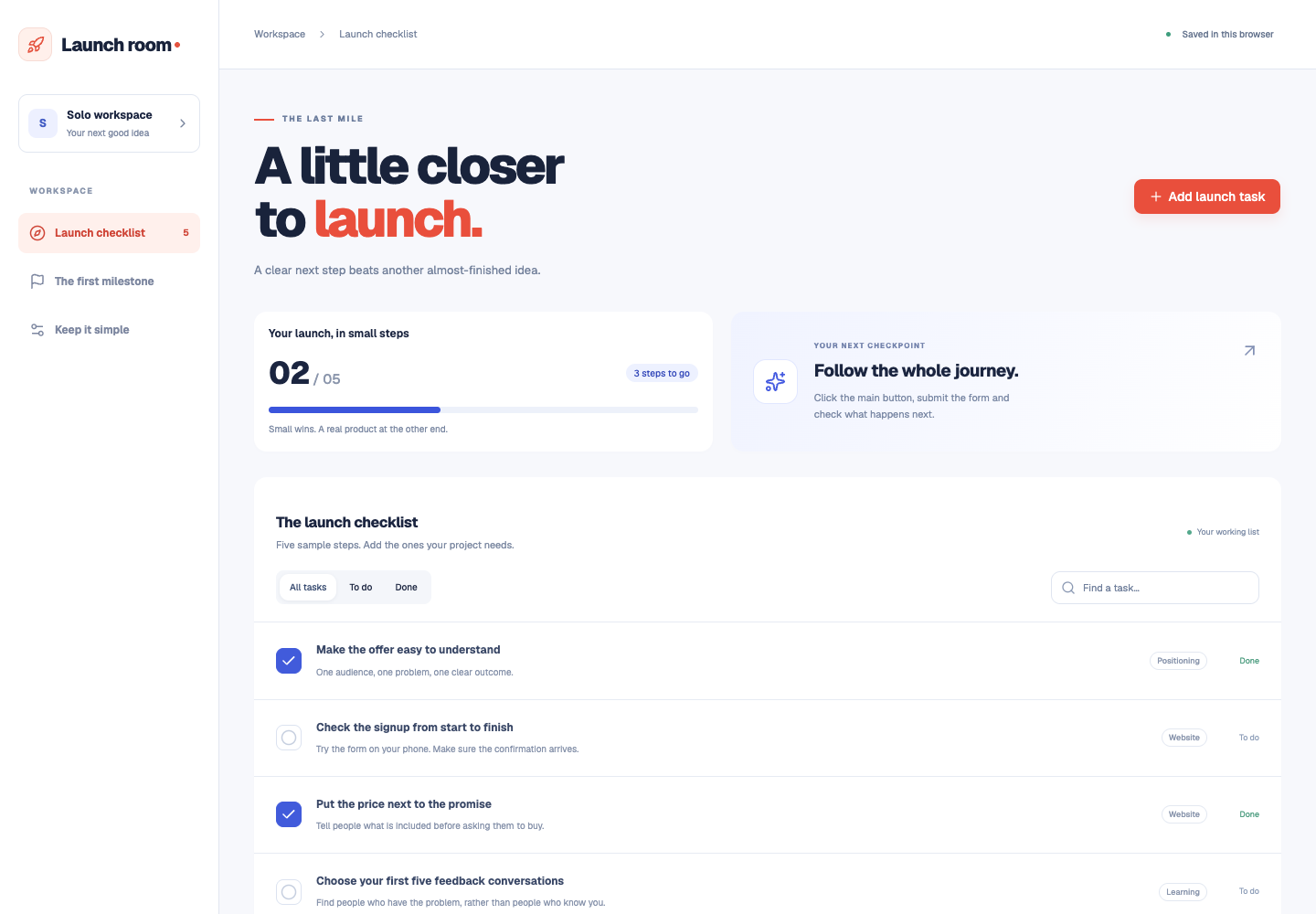
Search and the All tasks, To do and Done filters worked. The form rejected an empty task, added a valid task once and disabled its save button while saving. The new task and a later completion change survived a reload in browser storage.
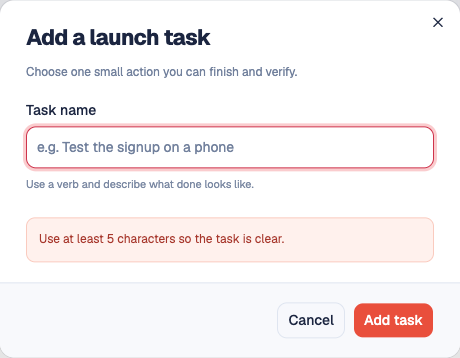
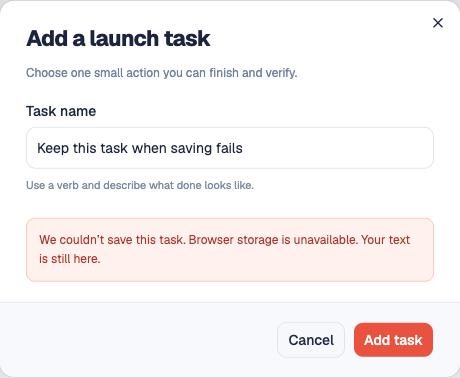
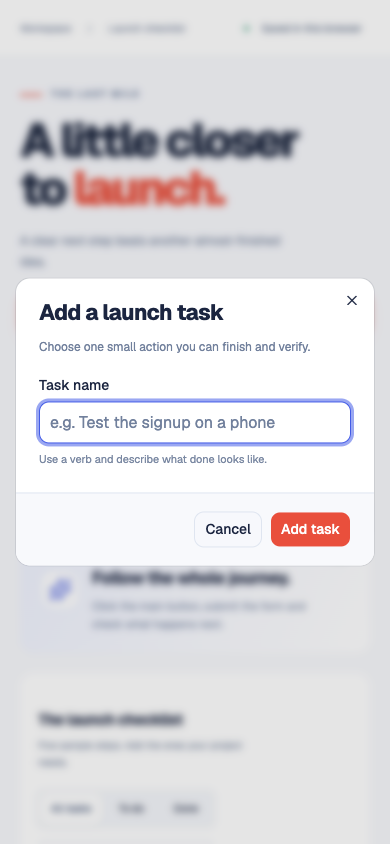
The desktop build and a 390px browser viewport were checked. Escape closed the dialog and focus returned to its trigger. The mobile form fit within the viewport, and the page had no horizontal overflow. This was a local prototype check, not a physical-phone or full accessibility audit.
Finish with the build and browser checks
The server’s get_audit_checklist returned reminders to check imports, dependencies, TypeScript, linting and browser behavior. It did not run those checks or certify the app.
Run the project’s build command and test the action you just added. For this example:
npm run build
npm run preview- Submit the empty form: is the requirement visible and connected to the field?
- Add a valid task, reload, then change its completion status and reload again.
- Open the dialog, use Tab and Escape, and check where focus returns.
- Try a narrow viewport and a search with no results.
- Demonstrate a failed save: keep the entered text and explain what happened inside the form.
The example passed its 14 scoped browser checks, including a check for recorded JavaScript runtime errors. That doesn’t establish database behavior, permissions, multiuser synchronization or production readiness. No speed or token-saving claim was measured.
If the workflow gets stuck
| What you see | What to check next |
|---|---|
| The agent has no shadcn tools | Check its MCP configuration and client restart/enable step. In this trial the server exposed seven tools, not an init_project tool. |
| Connected, but project context is empty | Check that shadcn is initialized and that the server is running in the directory with components.json. Our pre-initialization call returned an empty registry list. |
| The agent shows an add command, but no files appeared | Check whether it actually executed that command in your app. A returned command is not an installation receipt. |
| An example can’t find its imports | Compare the example’s registry paths with the installed files and your configured aliases. The path adaptation above was verified in this project. |
| The interface looks right but saving fails | Inspect your app’s data and error handling. MCP component discovery doesn’t implement your backend or saving rules. |
Copy the launch-checklist task
Once the server can see your project, give your coding agent this task. It separates finding the controls from implementing and verifying the app.
Build a small launch checklist in this existing app.
Use the official shadcn MCP tools to check the project
registry, find the needed components and read an example.
Use only free @shadcn items. Show the add command and
run it in this project, then inspect the installed source.

Start with five fictional tasks. Add text search and
All tasks / To do / Done filters. Add a dialog for a new
task, with a label, useful validation and saving state.
Save tasks and completion in localStorage for this demo.
Do not add a real backend, login or paid component.

Map example imports to the actual project aliases.
Run the build. Check creation, completion and reload,
empty search, invalid input, Escape/focus return and
a 390px viewport. Demonstrate a failed save inside the
open form without losing typed text.

Show the changed files. Explain what came from the
registry, what you wrote and what remains unverified.
Download the launch-checklist source (.zip)
The ZIP contains the example’s source, lockfile, setup instructions and license notice. Run it locally with Node.js/npm. Tested versions: shadcn CLI 4.22.1, MCP SDK 1.32.2, React 19.3.1, Vite 8.3.5 and Tailwind CSS 4.3.3.

Affiliate Disclosure: Some of the links in this article may be affiliate links, which can provide compensation to me at no cost to you if you decide to purchase a paid plan. This site is not intended to provide financial advice and is for entertainment only. As an Amazon Associate I earn from qualifying purchases.